

Algo OS FAQ: A Comprehensive Guide for Laser Engravers
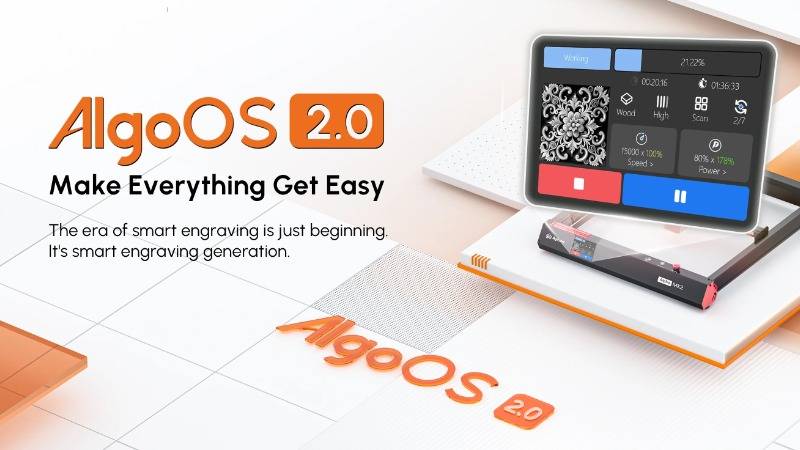
AlgoLaser's proprietary operating system, Algo OS, is revolutionizing how users interact with laser engravers. It streamlines the process for both newcomers and seasoned professionals by offering an intuitive interface, powerful features, and a smooth experience. We'll explore the most frequently asked questions (FAQs) about Algo OS, its capabilities, and how it enhances the performance of diode laser engravers.
1. Which Products Are Equipped with Algo OS?
Algo OS is the smart laser system developed exclusively for AlgoLaser products. As of now, the system is installed on the following devices:
· Delta series: Known for its robust performance and cutting-edge features.
· Alpha MK2 series: The versatile and powerful flagship line.
· DIY KIT MK2 series: Perfect for those who want a hands-on assembly experience with professional-grade engraving results.
Additionally, new products launching in the future will also feature Algo OS, ensuring continued support and future-proofing of the system.
Why it matters:
Having a unified operating system across AlgoLaser products ensures seamless software updates, a familiar user interface, and consistent performance, making the entire range easier to operate.
2. What Are the Core Advantages of Algo OS?
Algo OS stands out due to its simplicity and ease of use. The core advantages are:
· Super Easy to Use: Algo OS makes laser engraving incredibly easy. The process is reduced to three steps:
1. Select File
2. Set Parameters
3. Start Engraving
· Intuitive Touchscreen Interaction: Algo OS features a large, responsive touchscreen with a clear user interface, making it easy to read, understand, and operate. Even beginners can quickly master the system without extensive training.
Who can benefit?
Whether you're a new user looking to explore laser engraving for the first time, or an experienced engraver seeking a streamlined process, Algo OS helps you get started and manage your engraving jobs effortlessly.
3. Why Can't Algo OS Display or Engrave Some Images Directly?
While Algo OS supports a wide range of image formats (like PNG, JPG, etc.), there are certain exceptions. Here are common reasons why some images may not be displayed or engraved:
· Special Formats: Certain image formats that are not recognized by the system need conversion.
· Large File Size: Large-capacity files may fail to display or cause delays.
To avoid this issue, users can utilize file format conversion tools to convert images into smaller, more manageable formats.
4. Does Algo OS Automatically Adjust Parameters When the Laser Module Is Upgraded?
Yes, Algo OS allows users to adjust laser parameters when upgrading the laser module. Here's how you can do it:
· Switch Output Power: Go to Settings -> Machine -> Laser Options and adjust the settings to match the new laser module. This ensures that Algo OS automatically recommends parameters suited to the module being used.
Benefits:
Whether you're upgrading to a higher-powered laser module for faster engraving or precision work, Algo OS ensures that your engraving parameters are optimized for the best results.
5. Can Algo OS Be Used on Engraving Machines of Other Brands?
Currently, Algo OS is an exclusive system developed by AlgoLaser and is only compatible with AlgoLaser products. It cannot be installed or used on engravers from other brands.
6. Does Algo OS Need to Be Connected to Wi-Fi and the Internet?
Algo OS offers flexible connectivity options:
· Wi-Fi & Internet: It does not require an Internet connection to operate. However, connecting the system to Wi-Fi opens up additional functionality, such as firmware updates via OTA (over-the-air) and other advanced features.
· Local Operation: The system can fully operate without Internet access, using USB transmission or local network options to transfer files and commands.
Why Wi-Fi is helpful:
Connecting Algo OS to the Internet enables easy access to future updates, ensuring that your machine is always up to date with the latest features and bug fixes.
7. What Happens If Power Is Cut Off During the Engraving Process?
One of the standout features of Algo OS is its interrupt recovery function. If your engraving is interrupted due to power loss, emergency stop, or child lock activation, the system can resume the task from where it was left off.
· How to enable: Ensure that the interrupt recovery function is turned on in the settings. Once power is restored, the unfinished engraving task can continue as if the interruption never happened.
8. Will Algo OS Release New Features in the Future?
AlgoLaser is continuously improving the functionality of Algo OS. Expect regular updates that include new features aimed at enhancing the user experience. Future firmware upgrades will unlock even more advanced features for laser engraver users.
9. What Are the Smart Ecological Accessories for Algo OS?
Algo OS integrates with various smart accessories to enhance the performance of your laser engraver. Some of the smart accessories include:
· Smart Protective Box
· Smart Docking Station
· Smart Air Pump
· Smart Z Axis
These accessories, when connected with Algo OS, add a level of automation and precision, making the engraving process smoother and safer.
10. What Materials Does Algo OS's Quick Parameter Settings Support?
Algo OS offers pre-set parameters for various materials such as:
· Wood
· Acrylic
· Leather
· Metal
· Glass
In addition to supporting these materials, Algo OS comes with dozens of sample creation files that users can use to get started quickly.
Creative Convenience:
You don't need to guess the engraving settings for each material. Simply select the material, and Algo OS will automatically set the optimal parameters, allowing you to achieve high-quality results.
11. How Does Algo OS Obtain Material Resources?
Algo OS has a built-in library of 56 images and 15 preset images stored on the SD card. Additionally, you can import your own images via the USB transfer function or SD card.
12. Why Can't Newly Imported Images Be Previewed?
Imported images may not display a preview thumbnail immediately due to processing time. Here's how to resolve this issue:
· Click the image to enter the engraving parameter design interface.
· Wait for 2-3 seconds for the preview to generate.
13. How to Unlock the Engraving Machine if It's Locked?
If the engraving machine is locked, preventing movement or engraving, follow these steps:
· Go to the control page -> motion interface.
· Click the Stop button to unlock the machine.
14. How to Switch Between Different Laser Modules?
Switching between different laser modules on Algo OS is simple:
· Navigate to Settings -> Machine -> Laser Interface.
· Select the laser module you want to switch to.
15. How to Manage Files on Algo OS?
You can manage files stored on Algo OS directly on the machine. Files can be renamed, deleted, or transferred via USB to a PC for additional editing and storage. The USB file transfer option is available in Settings -> USB File Transfer.
16. How to Upgrade the Firmware on Algo OS?
Upgrading the firmware is straightforward:
· Connect to Wi-Fi and go to the firmware page.
· The system will prompt you when an upgrade is available. Simply follow the on-screen instructions to complete the update.
17. Why Can't the USB Drive Be Accessed?
If the USB Disk Icon remains gray after inserting the drive, follow these steps:
· Navigate to the Project Interface and click on the USB Disk button manually. The button will turn blue, indicating that the USB drive is accessible.
18. What File Formats Are Supported by Algo OS?
· Image Engraving: BMP, PNG, JPG (max size 10MB)
· Vector Cutting:SVG (max size 5MB)
· Gcode/NC: For both engraving and cutting (max size 512MB)
19. How to Use the Automatic Parameter Function?
The automatic parameter function in Algo OS simplifies the engraving and cutting process. Here's how it works:
· In the processing parameter setting interface, select the material type.
· Click AutoParam, and the system will automatically set power, speed, and number of passes based on the material.
20. What If I Mess Up the System Settings?
If you've adjusted system settings and want to revert to the default configuration, go to Settings -> System -> Reset Machine Options. This will restore the factory settings.
21. How to Switch to Roller and Chuck Modes?
To switch between ARR Roller Mode and ARC Chuck Mode, navigate to Settings -> System -> Working Mode and select the mode you need.
22. Why Can't My Computer Recognize the Engraving Machine?
If your computer cannot recognize the engraving machine after inserting the USB drive, here's how to troubleshoot:
· Unplug the USB flash drive, or manually disconnect the USB drive on the machine screen to allow the computer to connect.
Conclusion
Algo OS is a game-changer in the world of laser engraving and cutting, offering unparalleled ease of use, automation, and powerful features. Whether you're a beginner or a professional, this system helps you create stunning designs with minimal hassle. If you still have questions about Algo OS, feel free to explore more or check out our comprehensive manuals!


